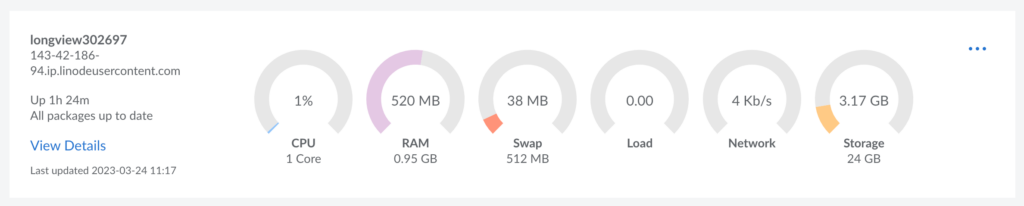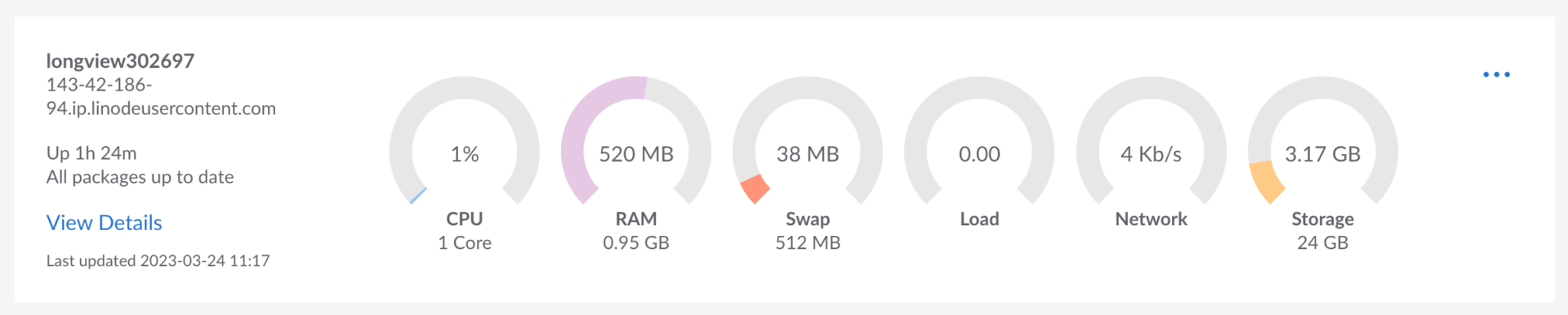
Production has a very specific kind of silence. It’s not the calm silence of a system that’s healthy. It’s the suspicious silence of a system that hasn’t complained yet.
Nginx still serves pages. Your API still returns 200. The business dashboard looks green enough to lull everyone into optimism.
But you can feel it, response time is heavier than yesterday, load average is a little too proud, and the phrase “it’s probably fine” starts bargaining with your instincts.
That’s where monitoring stops being decoration and becomes operational hygiene.
LINODE Longview won’t fix incidents for you. It won’t rewrite bad code or undo bad habits. But it will help you stop guessing. When the server slows down, you want to know whether it’s CPU saturation, memory pressure, swap thrash, disk I/O wait, network saturation, or an Nginx connection pattern that hints at trouble before it becomes a headline.
And because production loves irony, the first trouble you might face is installing Longview itself.
The “auto installer” that sometimes isn’t automatic
The Cloud Manager usually gives you a one-liner like this
curl -s https://lv.linode.com/<GUID> | sudo bash
Code language: HTML, XML (xml)
In theory, one command, done.
In reality, two failure modes show up often. The first is anticlimactic, Invalid Installer Session, because that GUID is a session token and it can expire. There is nothing “stuck” on your server to cancel, the session is simply no longer valid.
The second is more annoying. The installer may trigger an interactive Debian dialog asking whether it should auto-configure Nginx.
If you’re using a console where TAB and arrow keys don’t reach the process (web consoles and some terminal layers can do this), you end up staring at a Yes/No prompt that refuses to move.
You press n, nothing happens. You press TAB, nothing moves. You press arrows, and the terminal prints escape sequences like a haunted typewriter.
When that happens, the right move is not to fight the prompt. The right move is to stop trying to be “automatic” on production and do the clean manual path.
What we’re building (production-safe)
This manual setup is designed to be boring in the best possible way. Longview installs cleanly on Debian 12. The agent registers properly using your Longview client key.
Nginx metrics are enabled via stub_status, exposed only on loopback, and isolated in a way that avoids colliding with whatever is already listening on 127.0.0.1:80.
The mindset is simple, visibility without collateral damage.
Step 0, confirm your OS
cat /etc/os-release
lsb_release -a 2>/dev/null || true
Code language: JavaScript (javascript)
Step 1, fix half-configured packages (if you previously aborted an installer)
If you escaped a stuck interactive prompt with Ctrl+C, make sure dpkg isn’t left hanging like this
sudo dpkg --configure -a
sudo apt -f install
It’s a small step, but it matters. Production deserves clean state before you add anything you expect to run quietly for months.
Step 2, add the Longview repository (the reason APT can’t find the package)
If apt install linode-longview returns “Unable to locate package,” it usually means Debian doesn’t know where the Longview package lives yet. You need the Longview repository.
Create the repo list file like this
sudo tee /etc/apt/sources.list.d/longview.list >/dev/null <<'EOF'
deb https://apt-longview.linode.com/ bullseye main
EOF
Code language: PHP (php)
Yes, that says bullseye. On Debian 12, this can be a pragmatic compatibility choice when the repo doesn’t publish a bookworm distribution.
Add the GPG key and update:
sudo curl -fsSLo /etc/apt/trusted.gpg.d/linode.gpg https://apt-longview.linode.com/linode.gpg
sudo apt update
Code language: JavaScript (javascript)
If you want to confirm APT can see the package like this
apt-cache policy linode-longview | sed -n '1,120p'
Code language: JavaScript (javascript)
Step 3, install and start Longview
sudo apt install -y linode-longview
sudo systemctl enable --now longview
sudo systemctl status longview --no-pager
If theres a dialog box, to choose yes or no, you can use TAB.
Logs are your quickest truth serum, run this:
sudo journalctl -u longview -n 50 --no-pager
Step 4, register the agent with your Longview key
From Linode Cloud Manager > Longview, create a Longview client and copy its key. Then store it
sudo mkdir -p /etc/linode
echo 'PASTE_YOUR_LONGVIEW_KEY_HERE' | sudo tee /etc/linode/longview.key
sudo chmod 600 /etc/linode/longview.key
Code language: PHP (php)
This is the handshake. If the key is missing or wrong, the service can run while the dashboard stays empty. That kind of “everything is running but nothing is working” is the quietest form of failure.
Step 5 — enable Nginx metrics safely (stub_status on a dedicated loopback IP)
This is where production experience should override convenience.
Many servers already have something responding on 127.0.0.1:80. Sometimes it’s the default Nginx “Welcome” page. Sometimes it’s an internal admin vhost. Either way, adding a new server block on the same local bind can create collisions or confusing defaults. So instead of binding stub_status to 127.0.0.1, bind it to another loopback IP, such as 127.0.0.100.
Loopback is a whole range, and using a dedicated loopback alias keeps the change isolated.
Create this file:
sudo tee /etc/nginx/conf.d/longview_status.conf >/dev/null <<'EOF'
server {
  listen 127.0.0.100:80;
  server_name localhost;

  location /nginx_status {
    stub_status;
    allow 127.0.0.1;
    deny all;
  }
}
EOF
Code language: JavaScript (javascript)
Test and reload (reload is the production-friendly habit)
sudo nginx -t && sudo systemctl reload nginx
Now verify the endpoint. Notice the address is not localhost and not 127.0.0.1.
curl -s http://127.0.0.100/nginx_status
Code language: JavaScript (javascript)
A successful response will look like this (sanitized example from a real run) like this
Active connections: <n>
server accepts handled requests
 <a> <h> <r>
Reading: <n> Writing: <n> Waiting: <n>
Code language: HTML, XML (xml)
That tiny block of text is the difference between “I hope this works” and “this works.”
Step 6, point Longview to the correct status endpoint
Edit:
sudo vi /etc/linode/longview.d/Nginx.conf
Set:
location http://127.0.0.100/nginx_status
Code language: JavaScript (javascript)
Restart Longview so it picks up changes.
sudo systemctl restart longview
Step 7, proof of life (publish-safe)
When Longview and stub_status are wired correctly, the validation is straightforward.
The Nginx endpoint should respond like this
curl -s http://127.0.0.100/nginx_status
Code language: JavaScript (javascript)
Longview should be active
systemctl status longview --no-pager
Logs should show clean start/stop cycles
sudo journalctl -u longview -n 20 --no-pager
If you include log output in public writing, mask hostname and PIDs:
Dec 18 06:47:54 <host> systemd[1]: Stopping longview.service...
Dec 18 06:47:54 <host> longview[<PID>]: Stopping Longview Agent...
Dec 18 06:47:54 <host> systemd[1]: Started longview.service...
Code language: CSS (css)
If you see “left-over process remains running after unit stopped,” don’t panic. On some installs, Longview is managed via an LSB init script under systemd. The warning is often more about service script behavior than actual breakage.
Operationally, the simplest rule is: prefer systemctl restart longview and avoid pkill unless you’re recovering from a truly stuck process.
What this solved (beyond “it installed”)
Yes, we installed Longview. But the real win is what this changes in operations.
It turns “why is it slow?” from a debate into a diagnosis.
It removes fragile dependencies on expiring installer sessions.
It avoids interactive prompts that can break depending on the terminal environment.
It enables Nginx metrics without editing your production vhosts, by using a dedicated loopback endpoint for stub_status.
And in production, that’s what you want: visibility without surprise. Because the most expensive resource in production isn’t CPU or RAM. It’s ambiguity.
Troubleshooting in 60 seconds (copy/paste)
If Longview is installed but you’re not seeing data, check the pipeline in this order, agent, key, service, nginx_status, integration config, logs.
systemctl status longview --no-pager
sudo ls -l /etc/linode/longview.key
sudo journalctl -u longview -n 80 --no-pager
If you enabled Nginx metrics, verify the endpoint first
curl -s http://127.0.0.100/nginx_status
Code language: JavaScript (javascript)
If Nginx isn’t loading config or something feels off
sudo nginx -t
sudo systemctl reload nginx
Confirm Longview points to the same endpoint:
cat /etc/linode/longview.d/Nginx.conf
Restart cleanly:
sudo systemctl restart longview
sudo journalctl -u longview -n 30 --no-pager
If APT can’t locate the package, do this.
cat /etc/apt/sources.list.d/longview.list
apt-cache policy linode-longview | sed -n '1,120p'
sudo apt update
Code language: PHP (php)
Closing, production deserves intention
I don’t hate automation. I hate automation that edits production configs invisibly, restarts services unexpectedly, and depends on UI prompts that might not work when you need them most.
Manual install, done once and done properly, is not anti-automation. It’s pro-control. It’s you telling the server: this belongs here, for a reason, and it will run the way you want it to run.
And once Longview is up, with Nginx metrics flowing, you get something quietly priceless, not just charts, but clarity. The kind of clarity that turns the next incident into a short story, not a long night.